
- Home
- systeme.io tutorial
How to Set Up a Squeeze Page or Landing Page for Free in Just 5 Minutes

Want to build your email list fast without spending a dime? In this step-by-step guide, I’ll walk you through exactly how to create a high-converting landing page—also called a squeeze page—in just five minutes. We’ll use System.io, a popular free tool with everything you need to launch. No tech headaches. No shiny objects. Just a quick, focused strategy that works.
This tutorial and video teaches you exactly how to set up your own landing page/squeeze page email marketing system for free. However, if you do not want to set this up yourself we offer a “Done For You Service” right here.
Table of Contents
- Why Landing Pages Matter (And What’s a Squeeze Page?)
- Getting Started: Sign Up for a Free System.io Account
- Creating Your Email Campaign in System.io
- Writing Your First Automated Email
- Building a High-Converting Sales Funnel
- Designing Your Simple, Effective Landing Page
- Connecting Everything with Automations
- Customizing User Experience: Redirects & Confirmations
- Promote Your Landing Page & Start Building Your List
- Freebies & Incentives: How To Get More Subscribers
- Growth Tips – What Next?
- Watch & Subscribe!
- FAQs
Why Landing Pages Matter (And What’s a Squeeze Page?)
Before we get our hands dirty, let’s clear one thing up:
A landing page is a standalone page designed to make visitors take one specific action—like joining your newsletter. When that action is capturing someone’s email, marketers call it a squeeze page.
Why not just send people to your homepage? Simple:
The whole goal of a squeeze page is to totally focus people on subscribing—no distractions, no detours, just a single action.
If you want to actually build your list (not just cross fingers), you need one of these.
Getting Started: Sign Up for a Free System.io Account
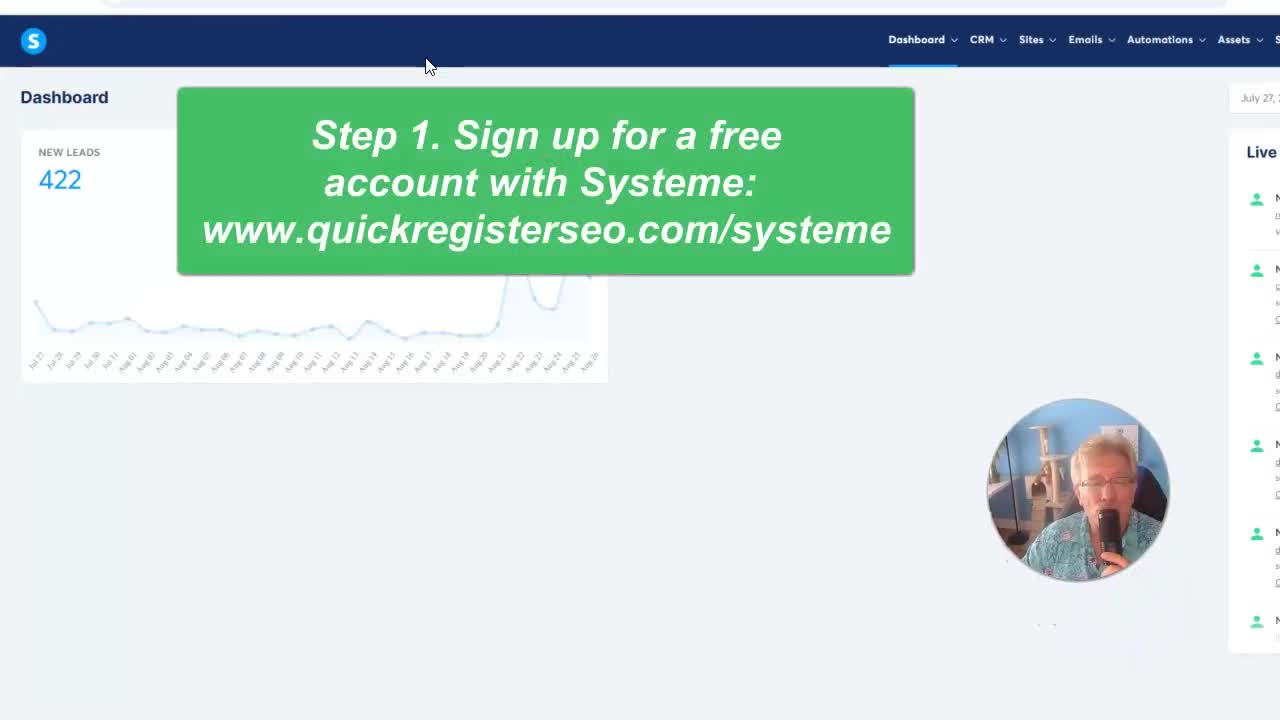
We’re using System.io because it gives you what you need without asking for a credit card. Sign-up is quick and the basic plan is totally free.
- Head over to System.io.
- Click the sign up button.
- Fill out your info—name, email, password.
- You’ll get a link in your inbox to confirm your email. Click it. Done.
Yes, it’s my affiliate link! Feel free to use it if you want to support this guide.
Pro tip:
- Use an email address you check regularly, since you’ll need to confirm it before you can send anything out.
Creating Your Email Campaign in System.io
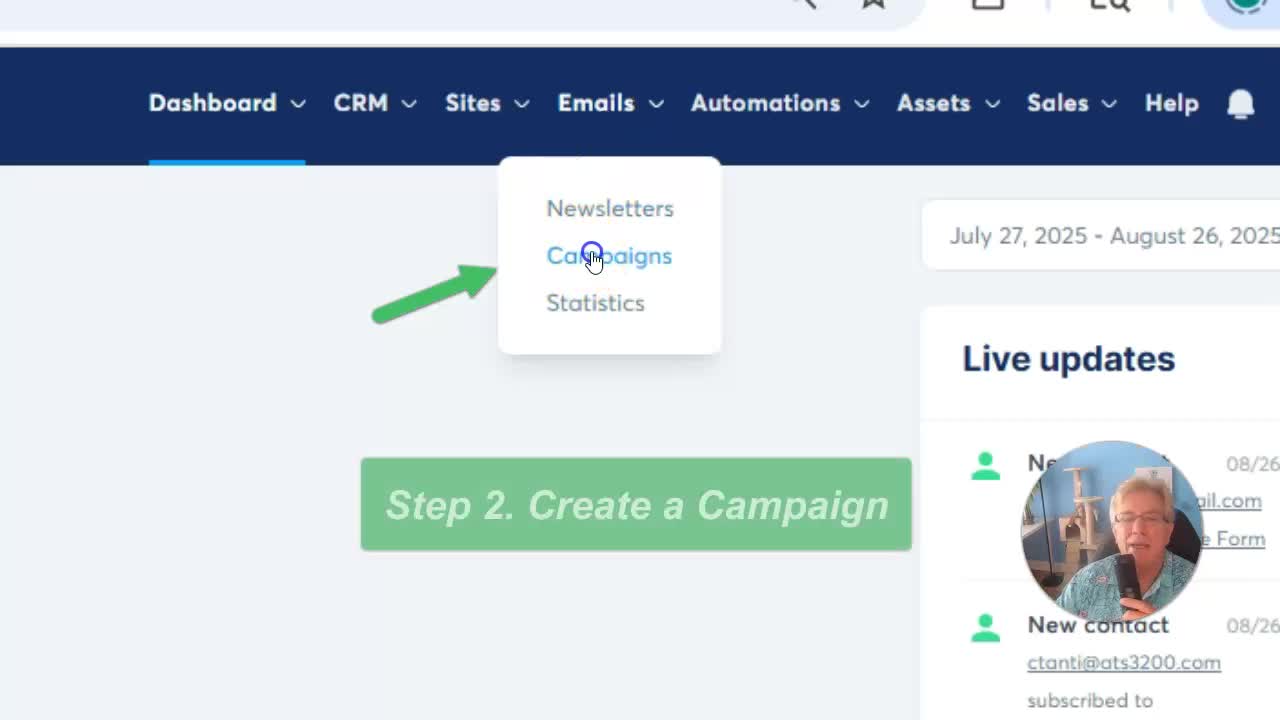
Once you’re logged in, it’s time to set up your first email campaign. This lets you automate follow-ups—key for turning sign-ups into real leads.
Step-by-Step: Create a Campaign
- Go to the “Emails” tab at the top menu.
- Select Campaigns from the dropdown.
- Click the Create button.
- Name your campaign. For example:
5 Minute Campaign. - Pick your sending email (remember: confirm it in System.io first).
If you want, add a short description like “Intro sequence for my newsletter.” (Totally optional.)
Saving Your Campaign
- Click Save.
- Your campaign will now show up in your dashboard.
Pro tip:
Skip the description if you’re in a hurry. You can come back and add details later when your schedule isn’t so tight.
Writing Your First Automated Email
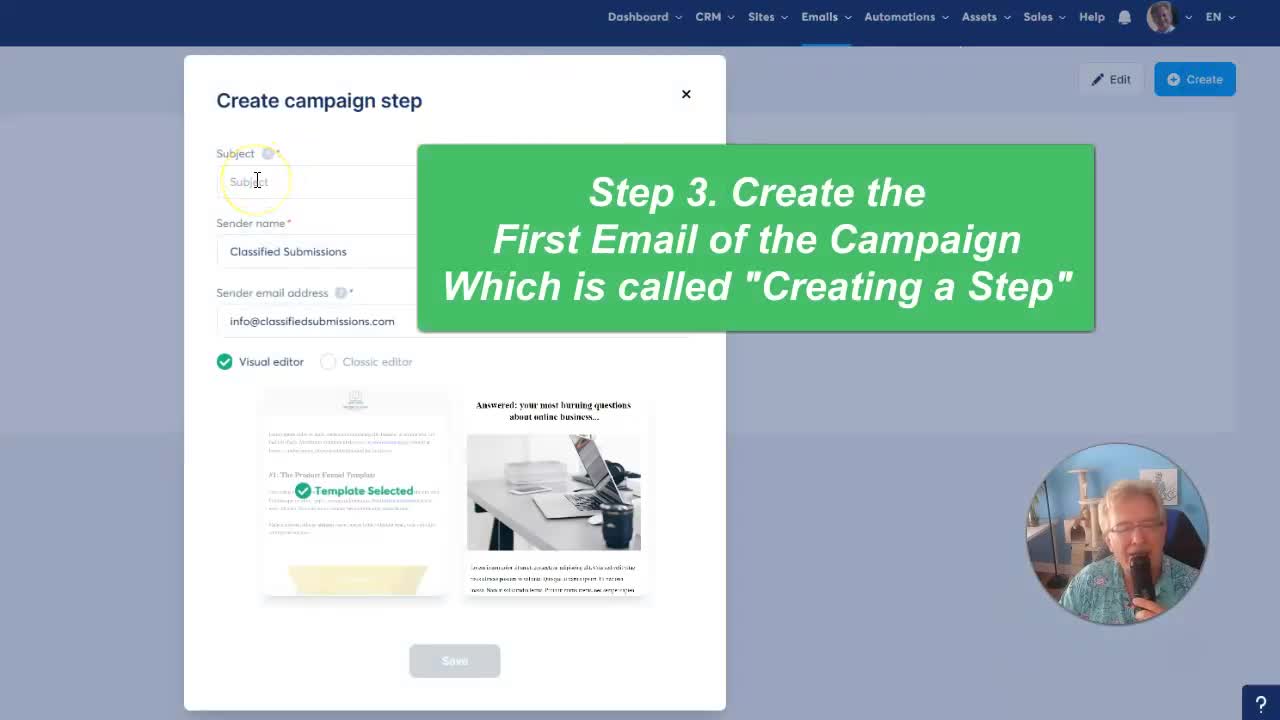
Now let’s hook up your welcome email. This is the first message subscribers see after they sign up—so it pays to make it good.
- Click your campaign name (
5 Minute Campaign). - Click Create to add your first email.
Email Details
- Subject line: Give folks a reason to open! For our example, let’s use:
5 Minute Landing Page – Quick Start Guide - Sender Name: Your name or business. (Example: Classified Submissions)
- Sender Email: The one you already confirmed with System.io.
Choose Classic Editor for a simple experience.
“I suggest clicking Classic Editor, I find it simpler.”
Composing Your Email Body
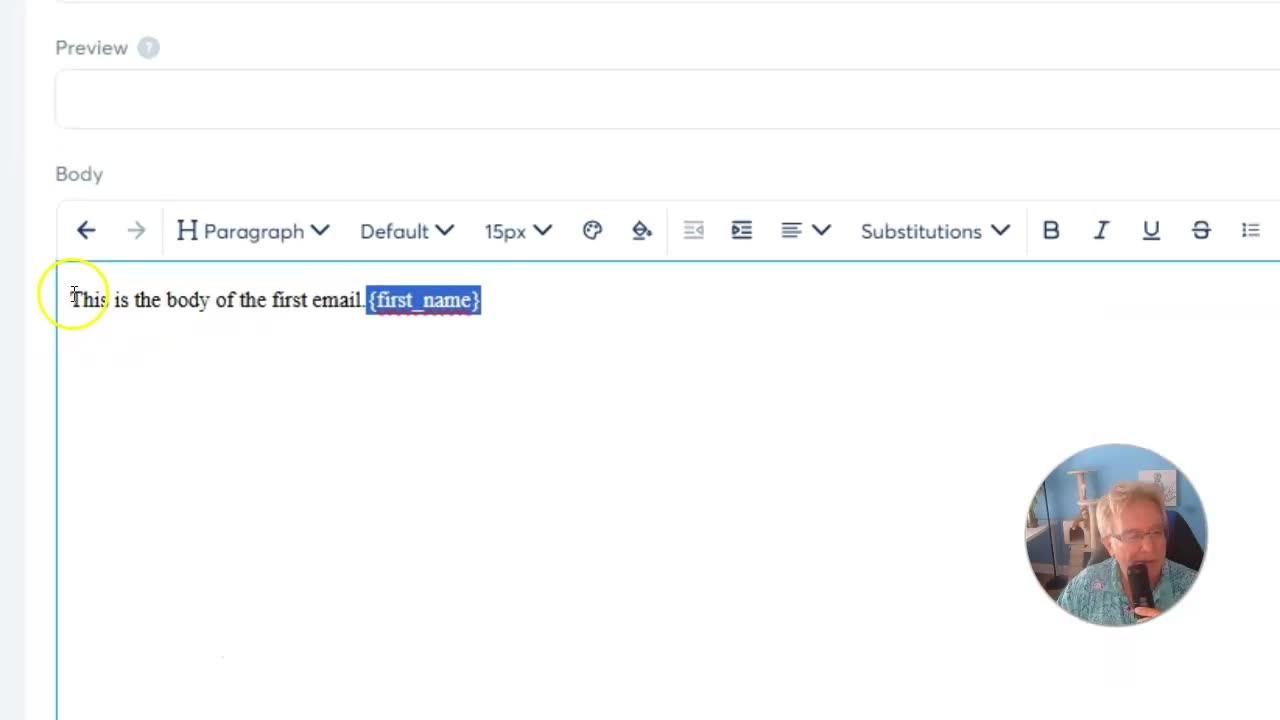
Now for the message itself. Here’s where you:
- Introduce yourself
- Welcome your new subscriber
- Tease what’s coming next
- Or simply deliver that valuable freebie if you’re offering one
You can personalize the email using “tags” like {first_name} for a nice touch.
Example greeting:
Hi {first_name},Thanks for signing up! Here’s what you can expect next...Don’t forget:
- You can personalize the subject line too
- Always test your email to see how it looks before launching
Test, Save & Publish
- Click Save after writing your message.
- You can send a test email to yourself or just hit Save & Publish.
By default, the email sends immediately (delay set to 0). Want to send more emails later? You can easily set delays like “3 days after previous email” when you add more.
“I always test my emails, but for this purpose, I’m going to save and publish!”
Building a High-Converting Sales Funnel
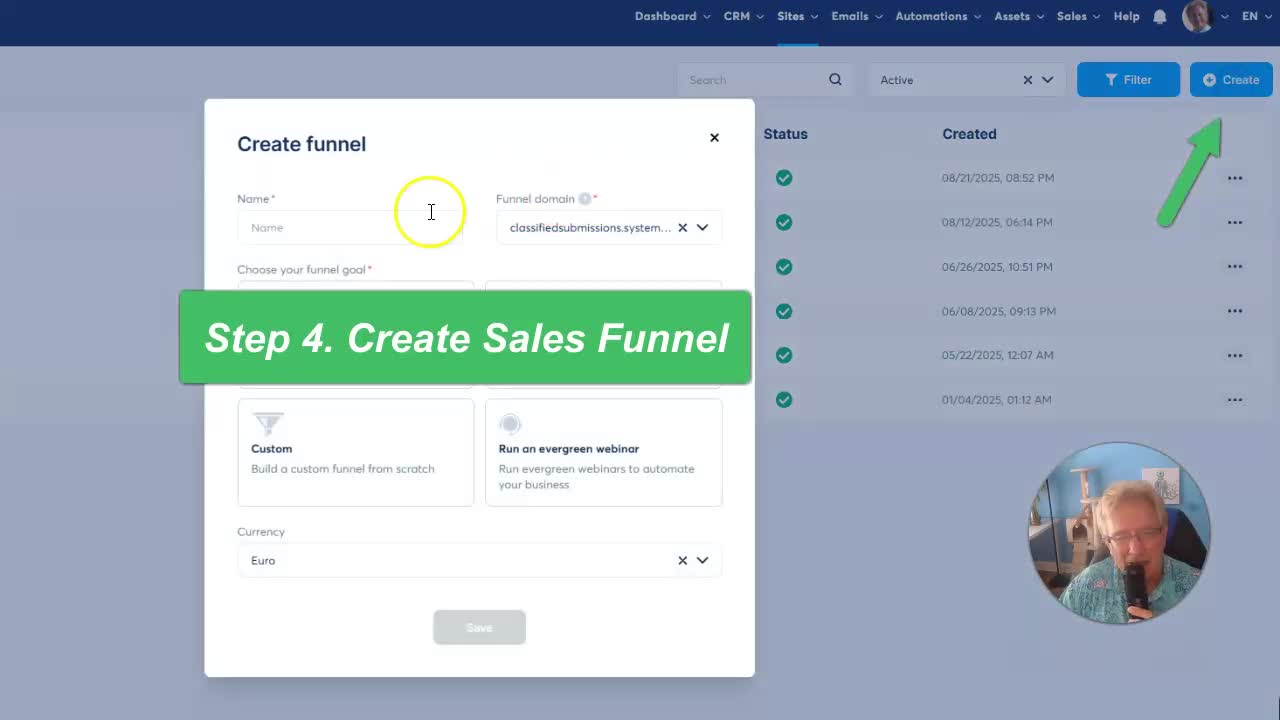
System.io calls landing page flows “sales funnels.” Here’s how you’ll set up yours for opt-ins.
Step-by-Step: Create a Sales Funnel
- Head to the Sites section.
- Click on Sales Funnels.
- Hit the Create button.
- Name your funnel – e.g.,
5 Minute Sales Funnel. - Choose the Build an Audience goal.
- Pick your currency (like USD).
- Click Save.
That’s it! Your funnel is now waiting for visitors.
Designing Your Simple, Effective Landing Page
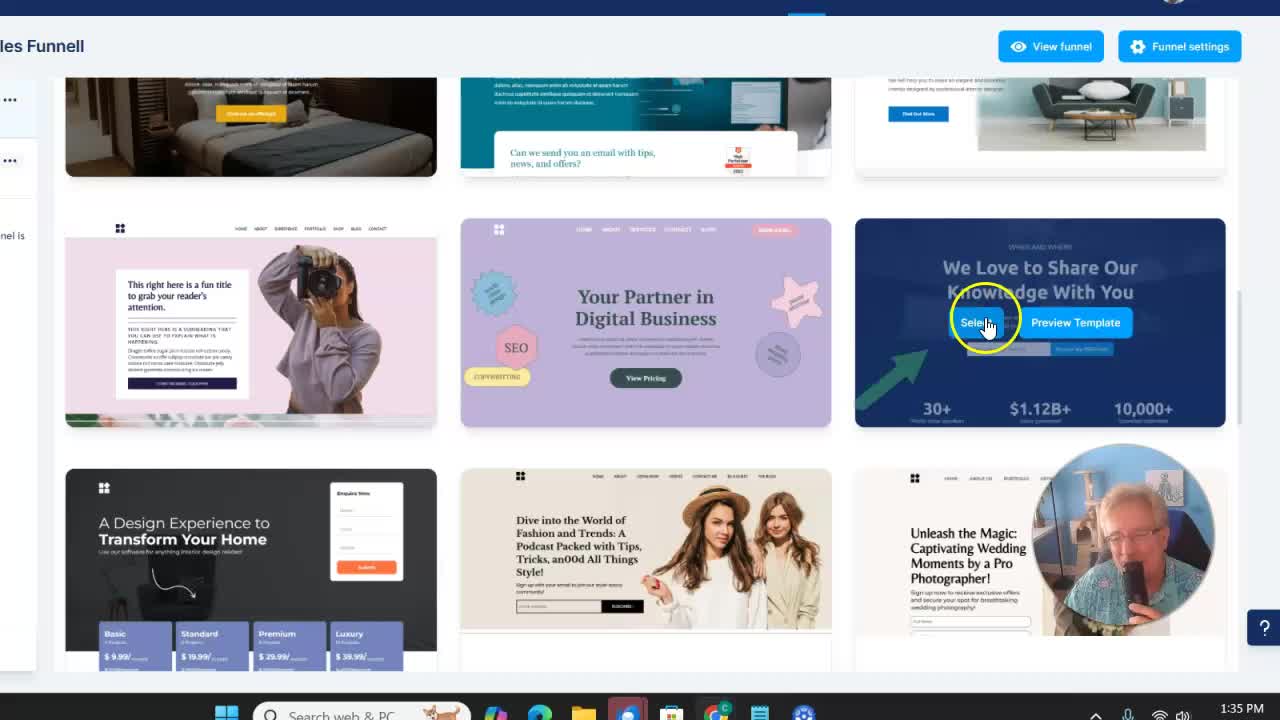
Now for the fun part: designing a page people can’t help but sign up on (and won’t get lost in). Simple always wins.
Choose a Template
- Open your funnel (
5 Minute Sales Funnel). - Click on it to see available templates.
- Pick a clean, minimal option—less is more!
“Simple sells best. I’m a fan of simpler the better.”
Customizing the Page
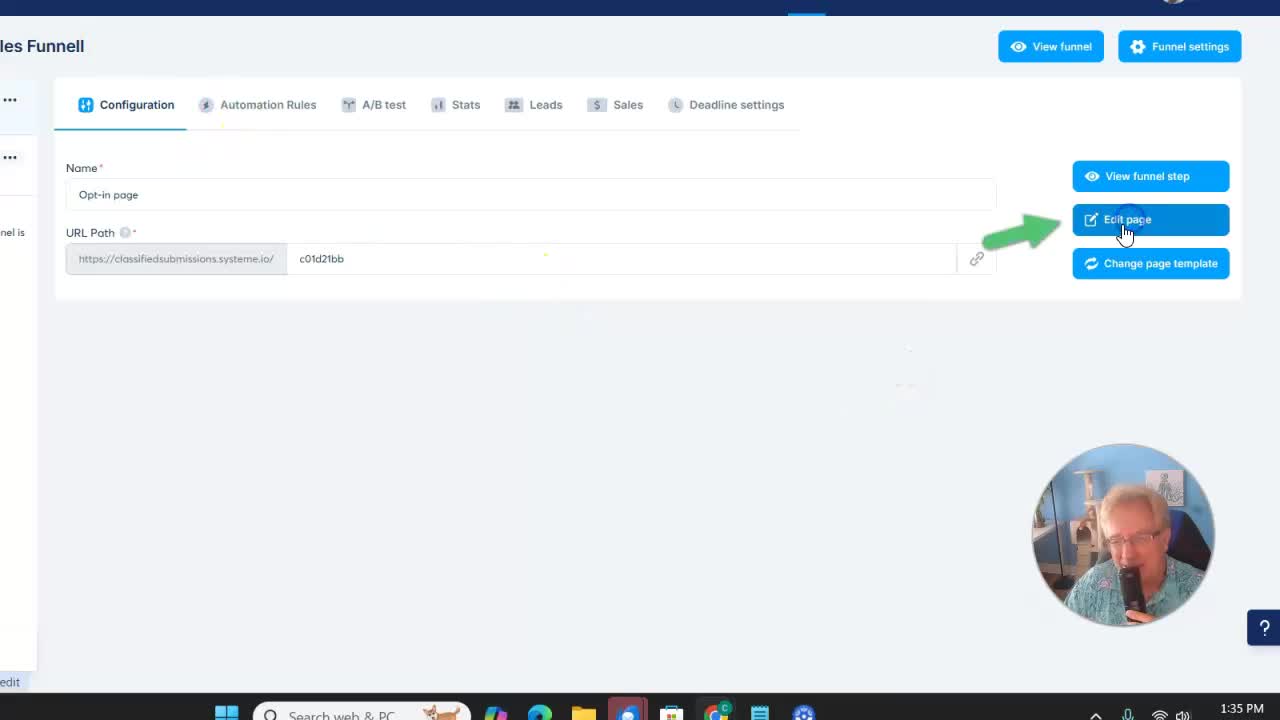
Click Edit Page, and the drag-and-drop editor will open up.
- Delete anything you don’t need.
Do you see a bunch of elements under the sign-up form? Nuke them! You want everything above the fold, so visitors don’t even have to scroll.You don’t want people to get distracted. The whole point is for them to give you their email.
Keep only what you need:
- A catchy headline
- One simple call-to-action
- An email field
- A clear submit button
That’s it! No useless fluff. No outbound links. No distractions.
Example of a super-simple layout:
---------------------------------------| [Headline: Claim Your Free Guide!]|| [Subheadline: Delivered Instantly]|| [Email Field] [Submit Button] |---------------------------------------Advanced Tip:
The legendary marketer Alex Hormozi built a $100M business with a landing page almost this simple. Don’t overthink it—simplicity really works.
Connecting Everything with Automations
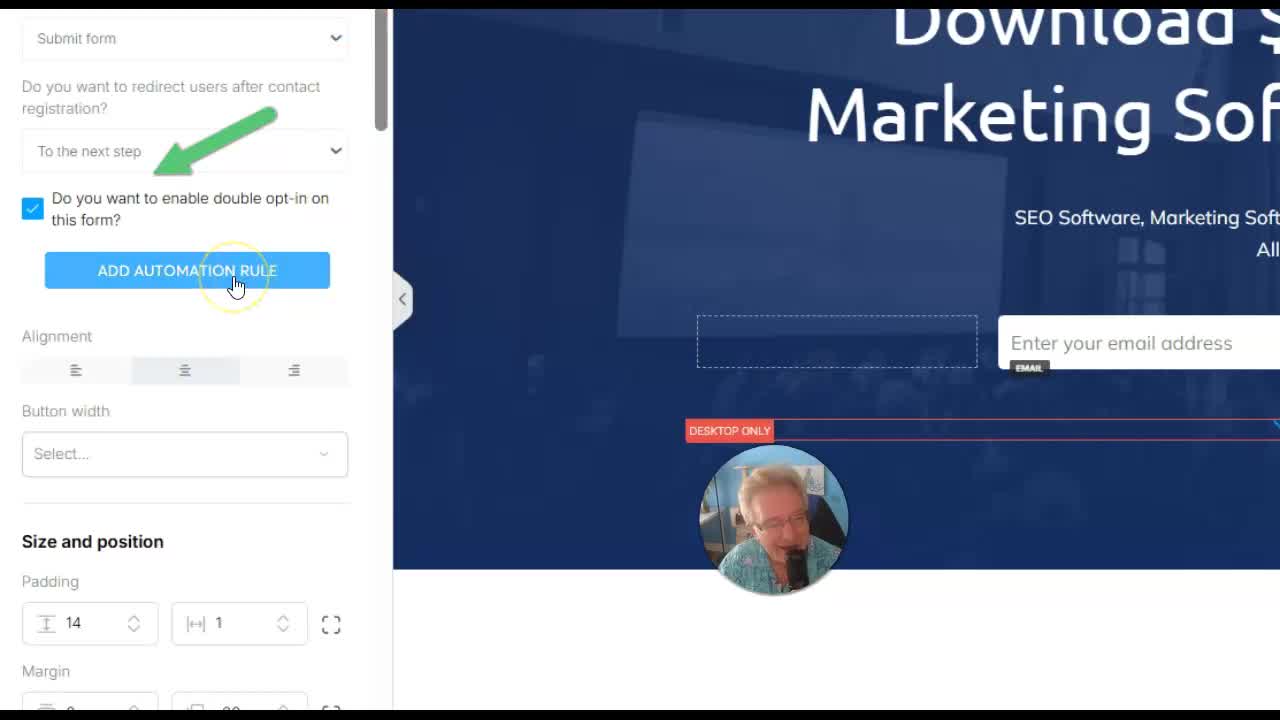
Now let’s make sure your new subscribers automatically get your email series.
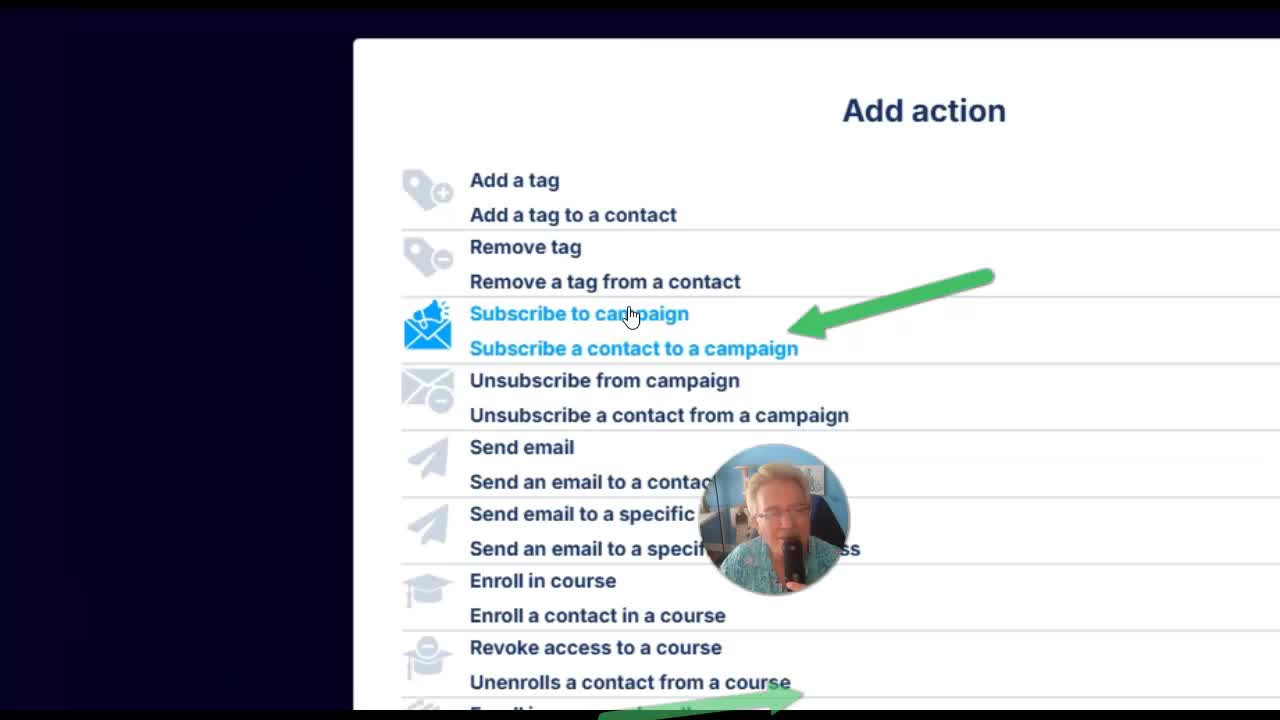
- In the editor, click on the Submit Button.
- Find the automation rules section.
- Click to add a new rule.
- Set the action to Subscribe to Campaign.
- Choose your campaign (e.g., “5 Minute Campaign”).
Click Add Action and then Save Rule.
“I always want confirmed opt-in so it’s a clean list.”
If you want, enable double opt-in—that way, folks confirm their email and your list stays squeaky clean.
Customizing User Experience: Redirects & Confirmations
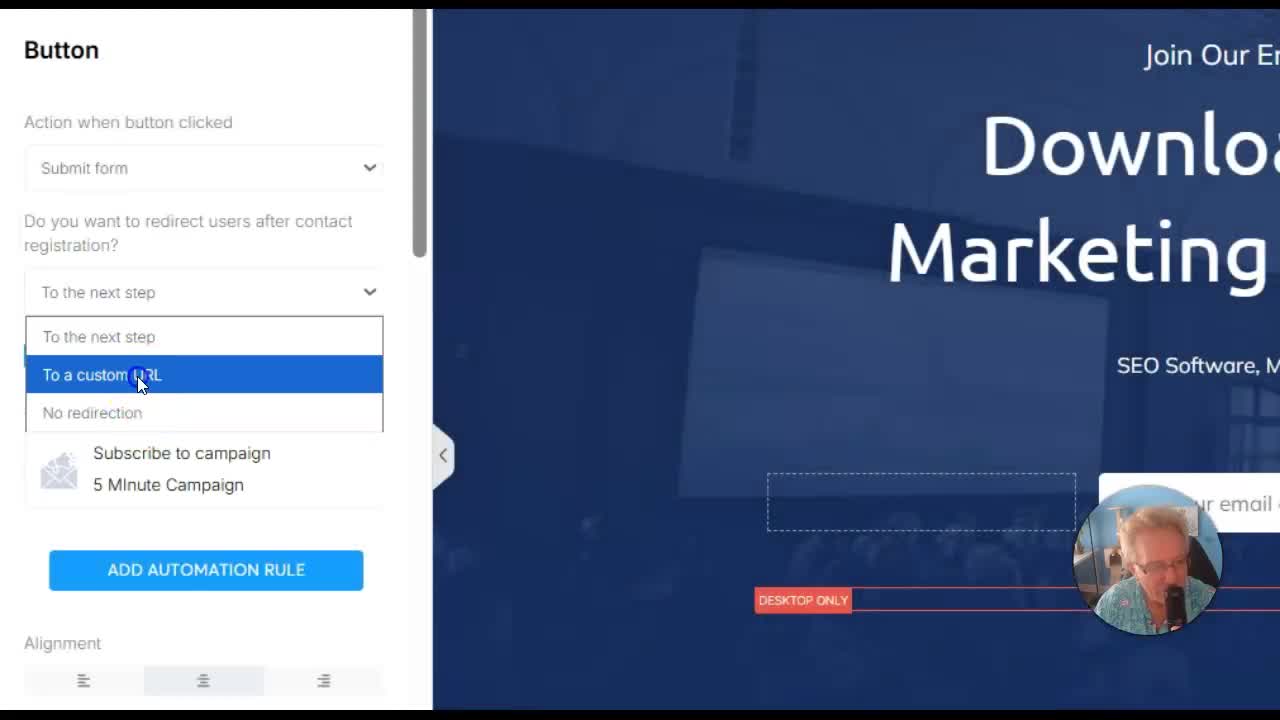
After someone fills out your form, you control where they go next.
- Click once on your form or funnel step.
- Look for the redirect setting (after contact registration).
- Choose:
- Custom URL: Send them somewhere special, like a thank you page, video, or bonus download.
- No redirection: Just keep them on the same page after signup.
Simply paste in your desired URL, or use System.io’s funnel editor to build your own thank-you page.
“If I want to control where people go after they sign up, I click one time and come over here.”
Don’t forget to Save!
Promote Your Landing Page & Start Building Your List
With your page ready, grab the URL from your funnel step. This is your main sign-up link.
Your Options:
- Use the raw link System.io gives you
- Set up a custom domain (looks more pro)
- Or use a link shortener for easier sharing (especially handy for social media)
“Now it’s just up to me to promote it. I’ve got my landing page to promote now.”
Your squeeze page is now live and ready for visitors. Start sharing, and watch your list grow!
Freebies & Incentives: How To Get More Subscribers
Quick fact: People are way more likely to sign up if you offer something cool in return.
- Free ebooks
- Checklists
- Templates
- Exclusive PDFs or videos
If you don’t have something handy, don’t stress. You can easily get started:
“If you comment free ebooks in the comment area below, I’ll send you three free ebooks that you can rebrand with your own affiliate links and use on your landing page as an incentive for people to join your newsletter.”
The psychology behind a freebie:
You’re not just giving away information—you’re giving people a reason to trust you, join your list, and open your emails.
Growth Tips – What Next?
Now that your squeeze page is up and running, here’s how to keep building momentum:
1. Test Your Page
- Try signing up yourself. Does everything work?
- Is your first email arriving in your inbox?
- Double-check on both desktop and mobile.
2. Split Test Headlines
Make small tweaks to your headline or button text and track which performs better.
3. Add More Emails
Go back to your campaign and add follow up messages:
- Day 1: Welcome email
- Day 3: Shares a valuable tip or resource
- Day 5: Invite to check out your product/service
4. Promote Everywhere
- Share the link on your social profiles
- Add it to your email signature
- Run a simple Facebook ad
- Partner with other creators
5. Stay Consistent
Keep emailing your list with value—don’t just pitch. Build the relationship.
A good landing page is the start of your audience. Keep showing up with value, and your audience will grow.
Watch & Subscribe!
If you loved this walkthrough and want even more hands-on tutorials to help you promote your business and grow your email list, definitely check out the YouTube channel.
Don’t forget to:
- Subscribe to the channel
- Hit the notification icon
- Drop a comment if you need more help or want those free ebooks
Click below for the next video and level up your marketing!
Frequently Asked Questions (FAQs)
1. Is System.io really free?
Yes! You can launch a landing page, send emails, and manage your list without a credit card.
2. Do I need tech skills?
Nope. The drag-and-drop editor and simple email builder make it easy for anyone.
3. Can I use my own domain?
Yes, System.io lets you add a custom domain for better branding.
4. How do I offer a free ebook?
Host your PDF on Google Drive or Dropbox, then link to it in your first automated email. Or, use System.io’s digital product feature to deliver it right after signup.
5. What if I want to add more emails later?
Go back to your campaign, hit Add Email, and set the delay for when each new email sends (e.g., after 3 days).
6. What is double opt-in? Should I use it?
Double opt-in means subscribers confirm their email address before joining your list. This keeps your list high-quality and spam-free—recommended!
Final Thoughts
Building a pro-level landing page doesn’t have to be rocket science—or cost you a cent. With System.io and a focused five-minute setup, you can start growing your audience today.
If you have any questions, leave them in the comments—let’s build something awesome together!
“Just one more point: it’s often good to have a freebie to give away in order for people to be enticed to join your newsletter…”
Ready to get started?
Sign up for your free System.io account here!
Good luck and happy list-building!